Clipboard
Copying text
Mobile
Tap and hold on the terminal to start a selection. Two draggable handles appear at the edges of the selected text — drag them to adjust. A floating menu with Copy and Paste buttons appears between the handles. Tap Copy to copy the selected text.
A brief scissors icon confirms the copy succeeded.
Desktop
Click and drag to select text, then press Ctrl+Shift+C (Linux/Windows) or Cmd+C (macOS) to copy. If no text is selected, Ctrl+Shift+C is a no-op.
Copy on select
You can enable Copy on Select in Settings so that any text you select is automatically copied to the clipboard — no extra tap or shortcut needed. This works on both mobile and desktop.
Pasting text
Mobile
When a selection is active, the floating edit menu shows both Copy and Paste buttons. Tap Paste to insert clipboard text at the cursor.
You can also add the paste soft key to your soft key layout for quick one-tap pasting without a selection — see Input Control.
The platform's native paste gesture still works too:
- iOS: Tap with three fingers to bring up the context menu, then tap Paste
- Android: Long-press the terminal, then tap Paste from the context menu
Desktop
Press Ctrl+Shift+V (Linux/Windows) or Cmd+V (macOS) to paste from the clipboard.
Pasting images
Mobitty lets you paste images (screenshots, photos) directly into the terminal — useful for sending visual context to AI agents.
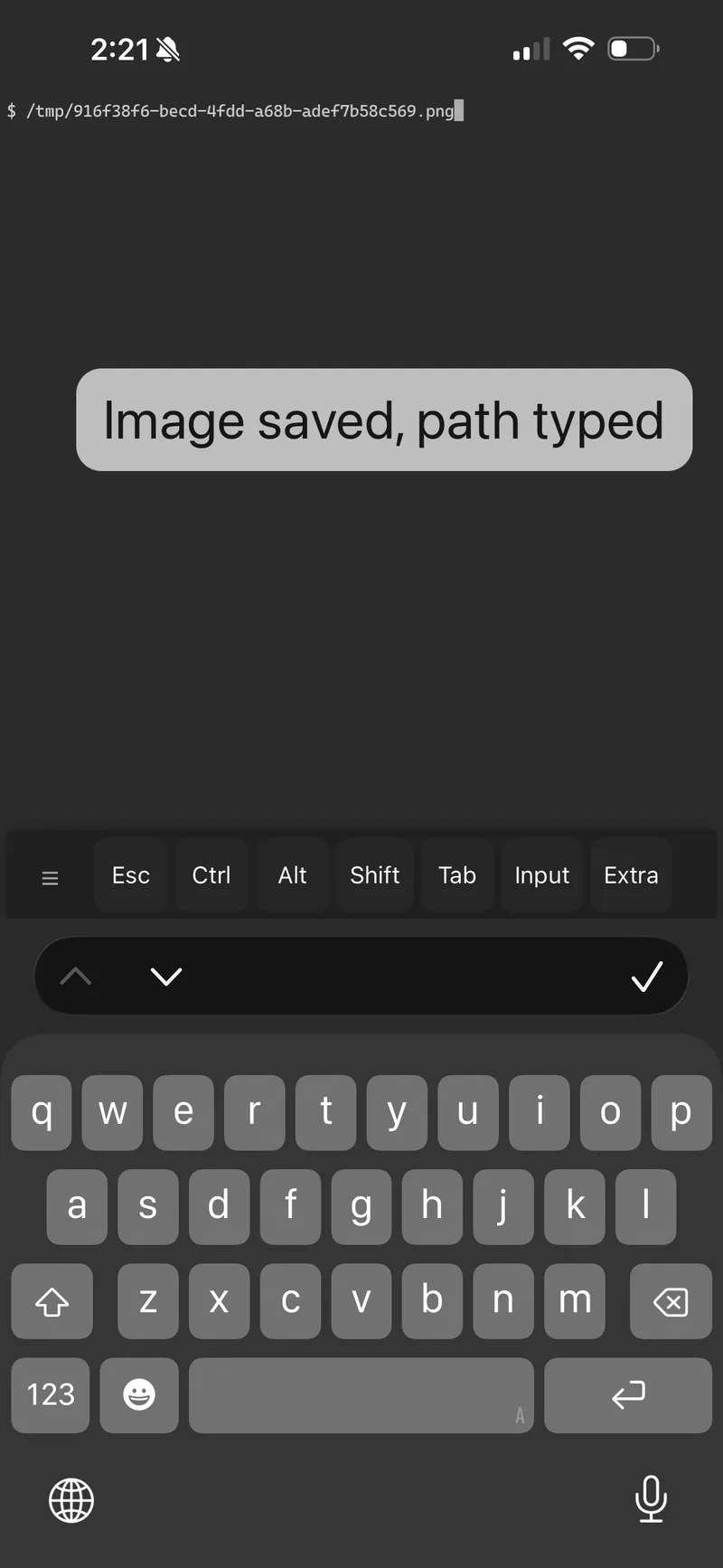
- Copy an image to your clipboard as usual (screenshot, photo, etc.)
- Paste into the terminal using the same gesture as text paste (see above)
- Mobitty sends the image to the server
What happens next depends on your server environment:
- If the server has a system clipboard (macOS, Windows, or Linux with X11/Wayland): the image is copied to the server's clipboard so the running program can access it.
- Sometimes the server doesn't have clipboard support (for example, a Linux server without X11). In that case, if you have an Image Paste Directory configured in Settings, Mobitty saves the image as a file in that directory and types the file path into your terminal automatically.
Supported formats: PNG, JPEG, GIF, WebP, and BMP. Maximum size: 25 MB.
iOS note
iOS may prompt you to allow clipboard access the first time. If you see a "Clipboard empty" message, allow access when prompted and try again.
Image paste directory
In Settings, the Image Paste Directory field sets where images are saved as a fallback. The path is relative to your shell's current working directory. Defaults to tmp.