Sessions
A session is a named, persistent shell process running on the server. Sessions are the core of how Mobitty works — they keep running whether or not a browser is connected, and any device can attach to them over the network.
Persistence
Sessions are not tied to a browser tab or a device. When you close a tab, navigate away, or lose your connection, the shell process keeps running on the server. Next time you open Mobitty, you are automatically reconnected to where you left off — your shell history, running processes, and working directory are all intact.
Sessions survive:
- Closing the browser tab
- Network interruptions
- Switching devices
- Reloading the page
A session only ends when you explicitly delete it from the session panel, or when the shell process exits on its own (e.g. you run exit).
Switching between devices
Because sessions live on the server, you can pick up on a different device without doing anything special. Open Mobitty on your phone while a process is running on your desktop — you will see the same terminal, the same output, and can continue interacting immediately.
Only one client can send input to a session at a time. When you connect from a second device, the first is disconnected. Your display and profile preferences (font, theme, soft key layout) follow the device, but the session itself is shared.
Multiple sessions
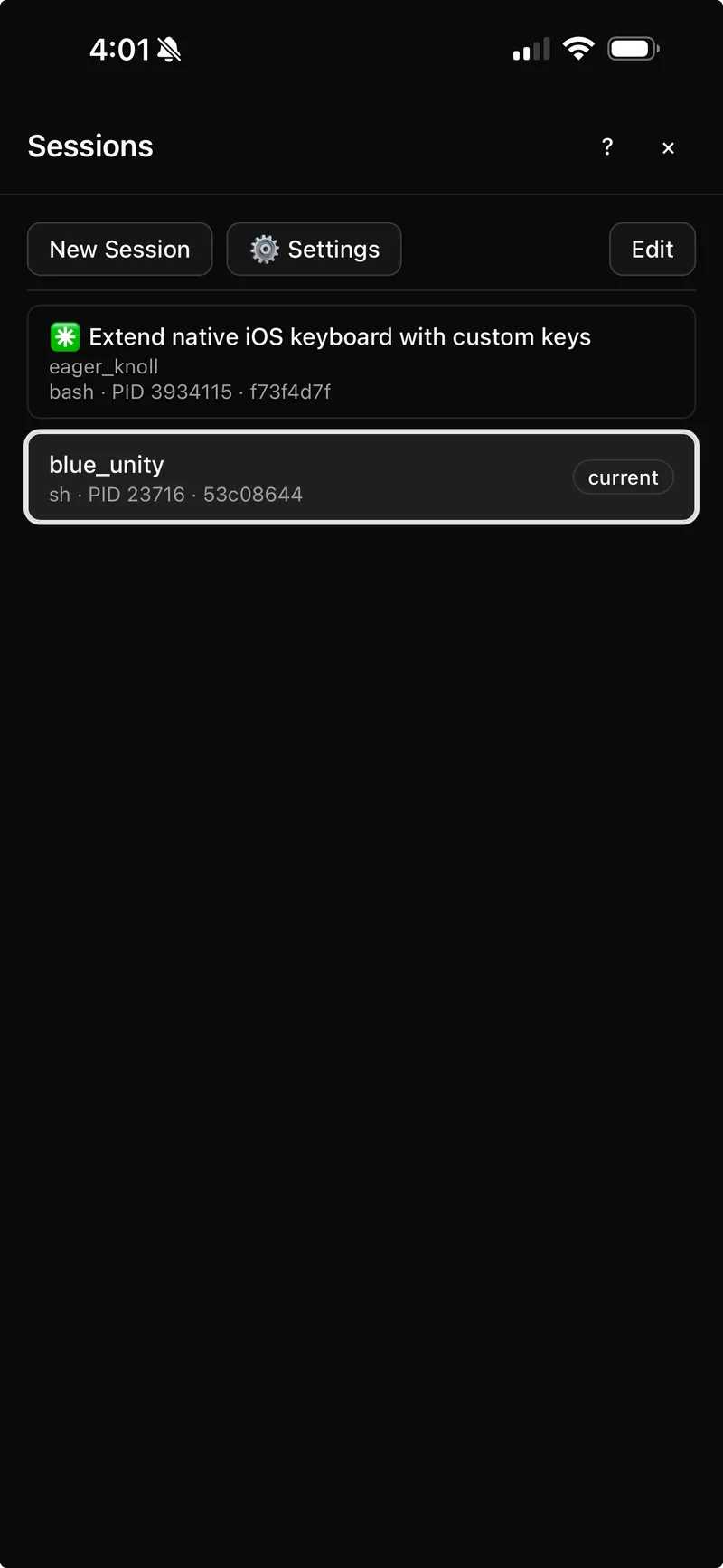
You can run as many sessions as you need. The session panel — opened with the session button on mobile, or Ctrl+Shift+S on desktop — lists all active sessions and lets you switch between them instantly.
Sessions are given auto-generated names like bold_maple or quiet_falcon when created. You can rename any session from the session panel to something more meaningful.
Session management
| Action | How |
|---|---|
| Create | Open the session panel and tap New |
| Switch | Open the session panel and tap a session |
| Rename | Long-press or use the rename option in the session panel |
| Delete | Swipe or use the delete option in the session panel — this also kills the shell process |
Dead sessions
When a shell process exits (e.g. you run exit or the process crashes), the session is marked dead. Dead sessions remain visible in the panel but cannot be interacted with. You can delete them to clear them out.