iOS App
The Mobitty iOS app is a thin native shell over the same web client you already use in the browser. It adds the parts the browser can't: a real on-screen terminal keyboard, multi-server connection rotation, 3-finger and edge-swipe gestures, and a touch-friendly selection layer with a magnifying loupe.
Available on iOS 17+. Download on the App Store.
Sessions and shells
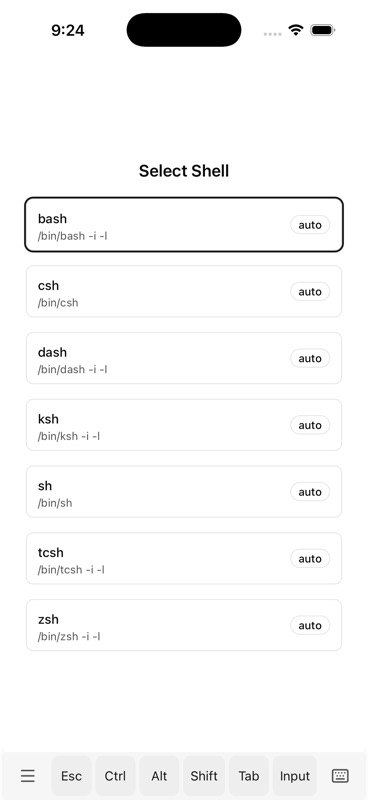
Pick a shell when you open a server for the first time — bash, csh, dash, ksh, sh, tcsh, zsh, or any custom command line. Shell processes run on the server, so they survive the moments the client doesn't: network blips between Wi-Fi and cellular, swiping the app away, locking the phone overnight.
The same session also moves with you across devices. Start a build on your laptop in the office, watch it from your phone on the commute, and pick up on a tablet at home — the session list shows every live session on the server, with current marking the one you're attached to. Tap a different row and you're attached to that one instead; no need to keep the old device awake or even open.
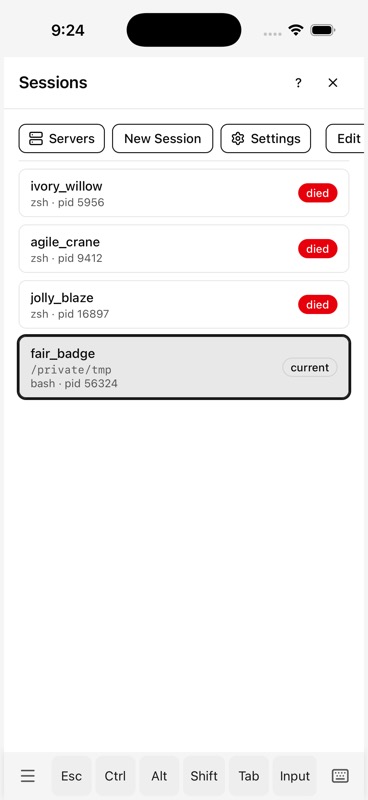
The session switcher is built for thumbs, not key combos:
- Open it with a left-edge swipe, or by tapping the menu button on the softkey bar. No Ctrl-chord required.
- Switch by tapping any row — attaches you to that session and dismisses the panel in one tap. The previously-current session stays alive on the server.
- Start a new one with New Session (which opens the shell picker), or jump straight to a different server with Servers.
- Clean up dead sessions with Edit, or swipe a row left for a quick delete.
- Each row shows the session name, its shell, PID, and the working directory at first sight, so you can identify "the build one" from "the agent one" without attaching first.
Multi-server connection rotation
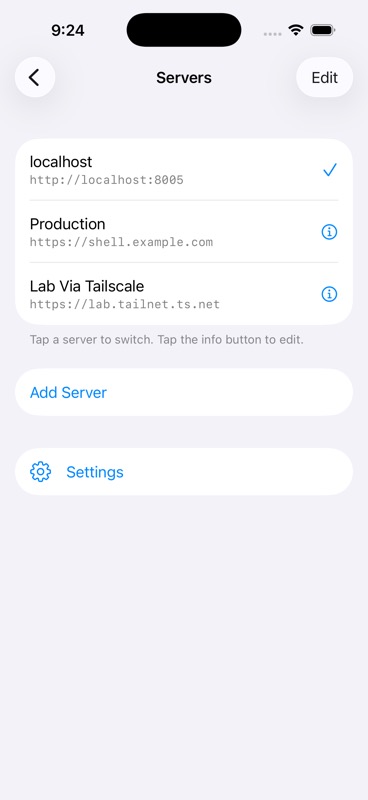
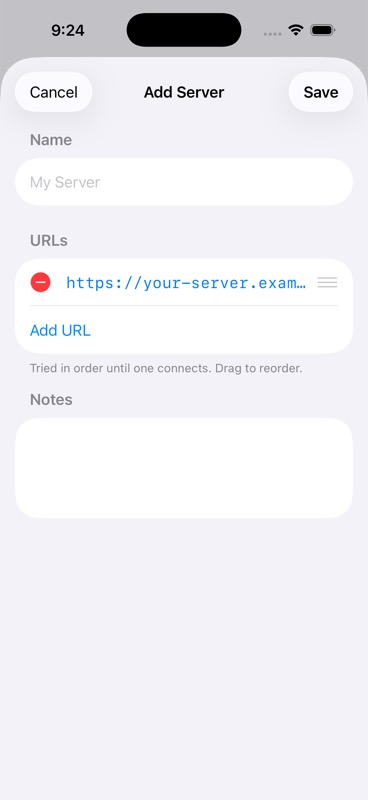
Save Production, staging, and lab boxes once. Each saved server can list several URLs — LAN, Tailscale, public hostname — tried in order until one connects. Your phone uses the office LAN when you're on Wi-Fi, falls through to your Tailscale address when you're on cellular, and gives up on the public hostname only after the first two fail.
Native terminal keyboard
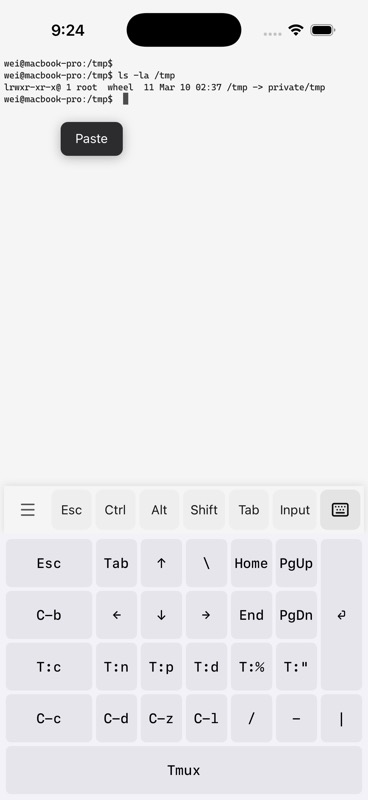
A SwiftUI key grid that lives below the terminal — separate from the web softkey bar. Pick from built-in Readline, Tmux, Vim, or Claude Code layouts, or design your own. Each key has a real position on a grid you drag-arrange yourself; layouts don't reflow across orientations.
The four built-in layouts in their default state:
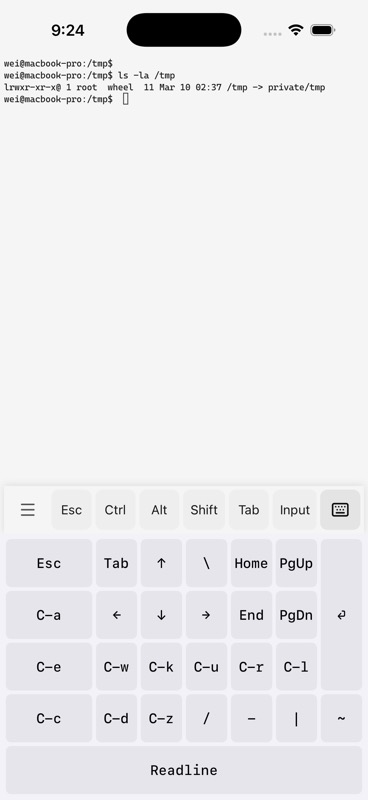
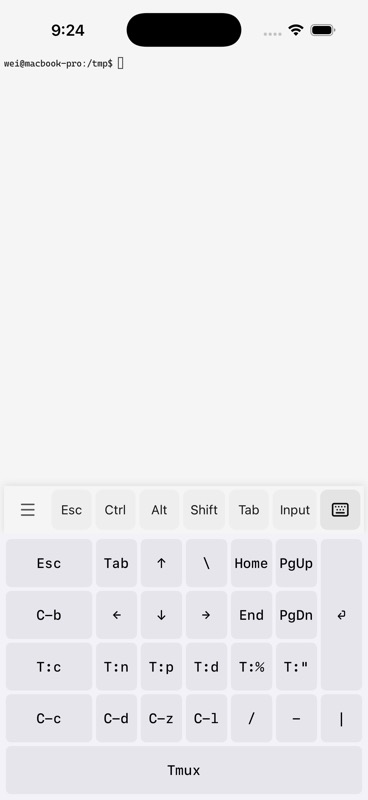
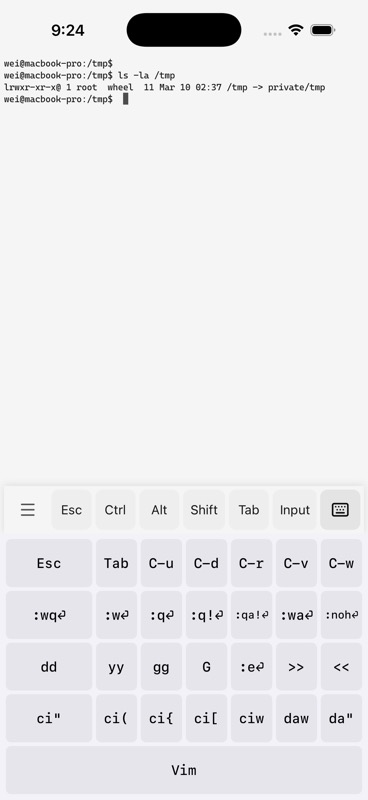
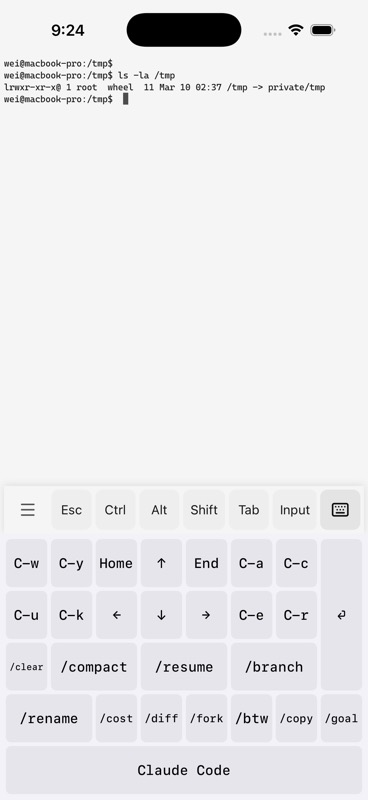
Customize in place: drag a key to move it, tap to edit its action, add new keys from the catalog. Define multiple layouts and cycle through them with one tap on the keyboard toggle.
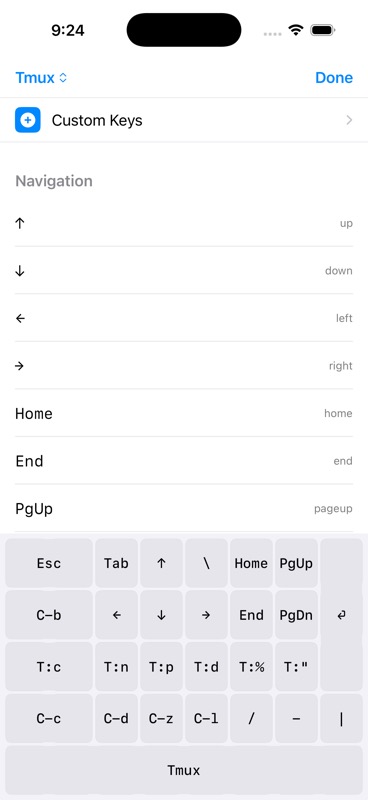
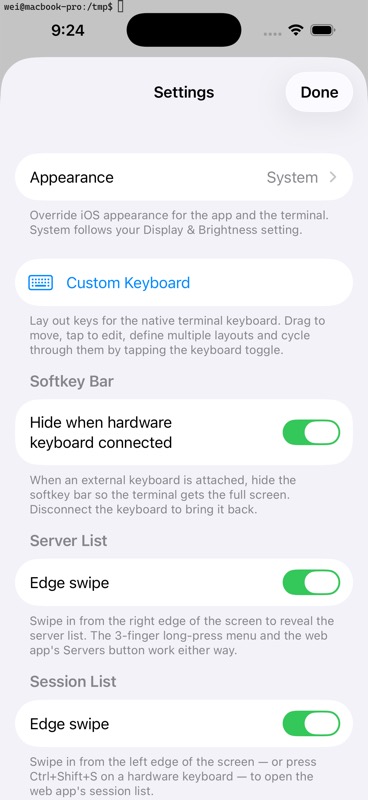
A built-in toggle hides the softkey bar automatically when a Bluetooth or Magic Keyboard is paired, so the terminal gets the full screen.
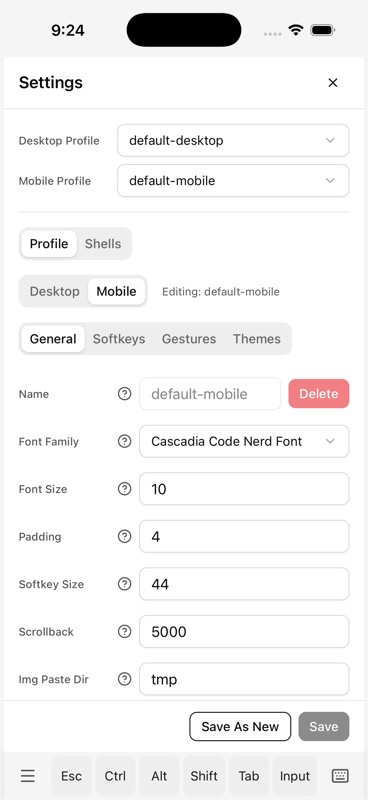
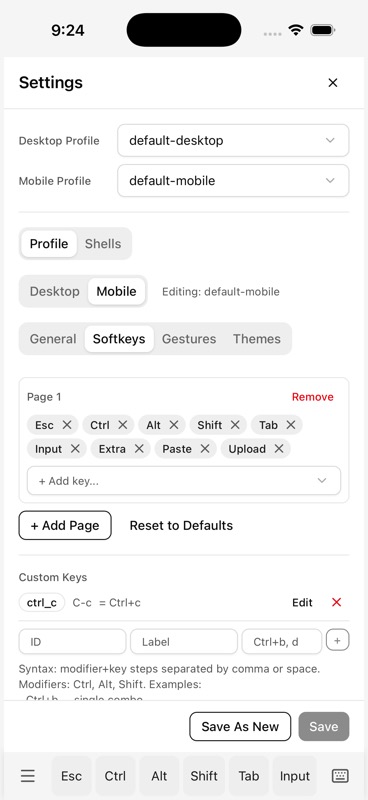
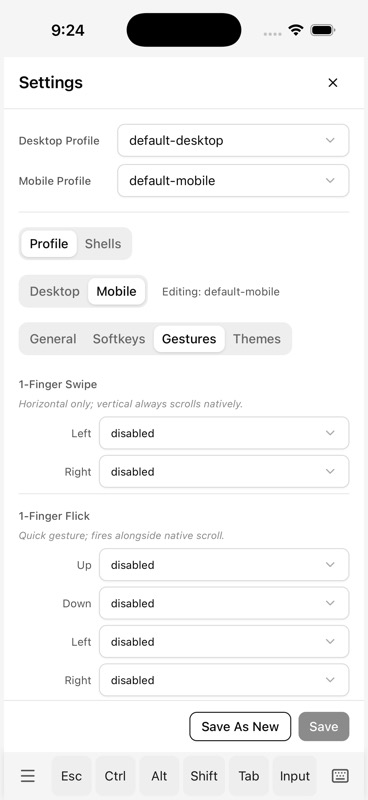
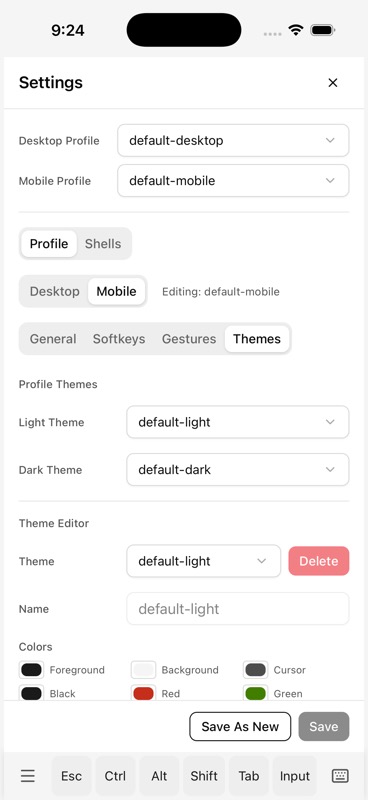
Settings — General, Softkeys, Gestures, Themes
Four tabs share the same profile model as the web client. Edit them on the phone and the desktop picks them up next time you connect.
Touch selection
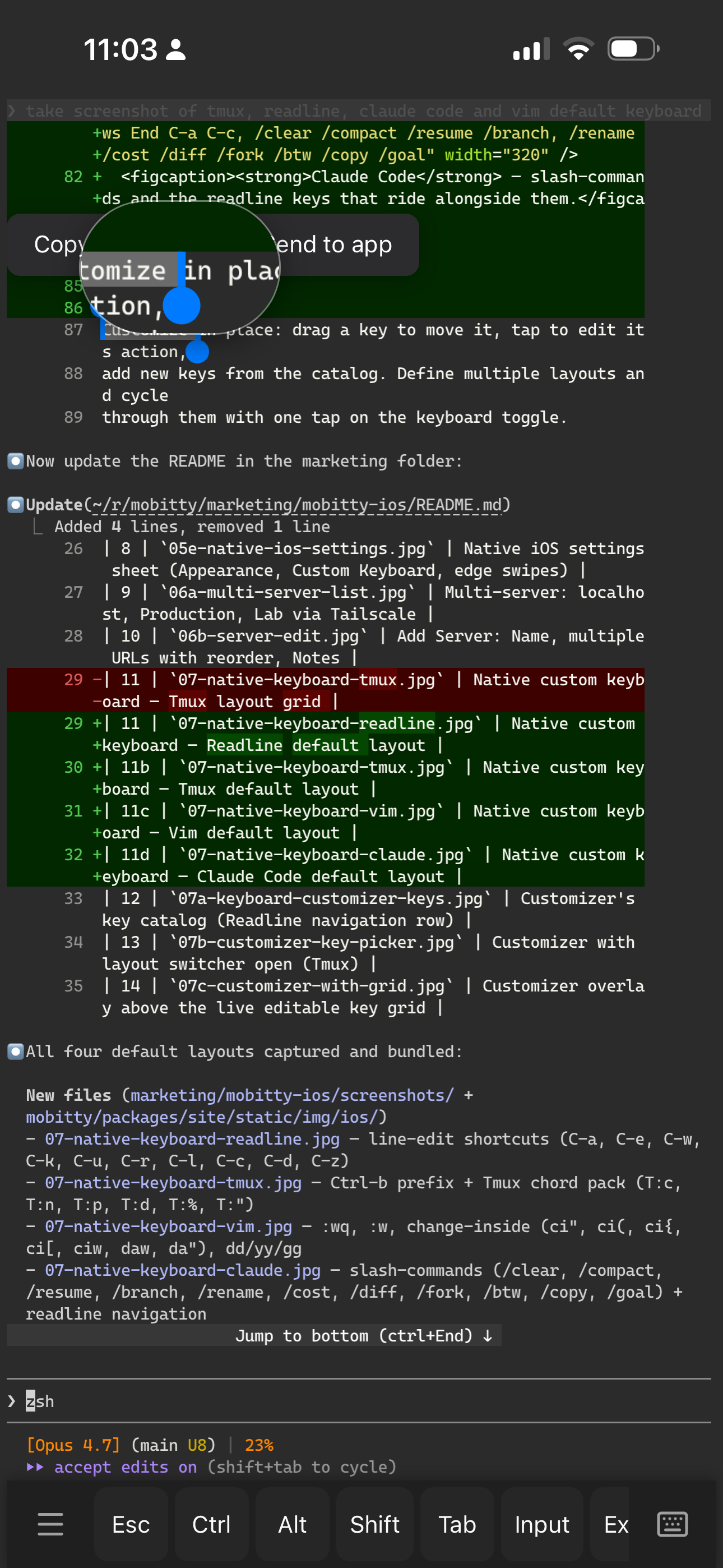
Tap to drop a Paste popup at the cursor. Long-press to start a selection — iOS-style handles attach to the boundaries and a circular magnifier loupe rides above your finger as you drag, so you can land the boundary on the right character without lifting and trying again. Copy and Paste menus float above the selection.
File transfer and image viewing
Anything the mobitty-cli shell tool
does on the desktop works in the iOS WebView, with the iOS twist that
files land in the iOS files / photos app instead of a browser
download folder.
- View an image —
mobitty-cli view photo.pngopens a fullscreen viewer with pinch-to-zoom. Handy for screenshots, generated charts, PDFs the agent rendered, etc. - Download a file —
mobitty-cli download backup.tar.gzstreams the file straight to the iOS download manager. From there you can Save to Files, AirDrop, or open in any other app. - Upload a file — tap the Upload softkey to pick a file from iCloud Drive, Photos, or any iOS document provider. The file is streamed up the WebSocket and dropped at the working directory.
- Image paste — copy a screenshot to your clipboard (or take a screenshot with Side+Volume Up), tap the Paste softkey, and the file is written to your configured paste directory and its path is typed into the terminal. See Clipboard for the full flow.
Network adapts to you
Cellular, hotel Wi-Fi, the train tunnel between you and your office — the iOS app rides on the same adaptive protocol the browser client uses. The server measures round-trip time continuously and tunes the refresh rate from 60 fps on a LAN down to 4 fps on a slow link, so keystrokes stay snappy even when bandwidth gets squeezed. Updates are incremental (only what changed since the last frame) and the whole channel is compressed.
Your input is always sent immediately. Only screen refreshes are throttled, which is what keeps the terminal feeling responsive when the network doesn't.
iOS-specific gestures
| Gesture | Action |
|---|---|
| 3-finger long-press anywhere | Quick menu — Reload, keyboard mode, Settings, Manage Servers |
| Right-edge swipe in | Open native server list |
| Left-edge swipe in | Open the web client's session list |
| Ctrl+Shift+S on hardware kb | Same as left-edge swipe |
All four are toggleable from the native Settings sheet:
What the app does NOT do
The web client is the product. The iOS app does not duplicate any web functionality:
- No SSH client built in — you bring the tunnel (Tailscale, Cloudflare Tunnel, WireGuard, plain SSH port-forward, whatever you like).
- No credentials stored in the app. Authentication is handled by your tunnel.
- No analytics, no telemetry, no fingerprinting. The privacy manifest
declares one required-reason API:
UserDefaultsfor the app's own saved-servers list.
See also
- Remote Access — secure tunnels you can pair the iOS app with
- Shell Tools (mobitty-cli) —
view,download,editfrom inside the session - Adaptive Protocol — how the refresh rate, incremental updates, and compression tune to your network
- Gestures — web-side gesture bindings (work alongside iOS-native gestures)
- Soft Keys — web softkey bar (shown above the native keyboard)
- Clipboard — iOS clipboard prompts and behavior